Add your products from a spreadsheet
Your products in your store, read from a spreadsheet you already have.
About 5 minutes. You need: A CSV or Excel file of your products, up to 500 products and 4 MB. A Shopify export works as it is.
Under Products, choose A spreadsheet, then tap Choose your file and pick it.
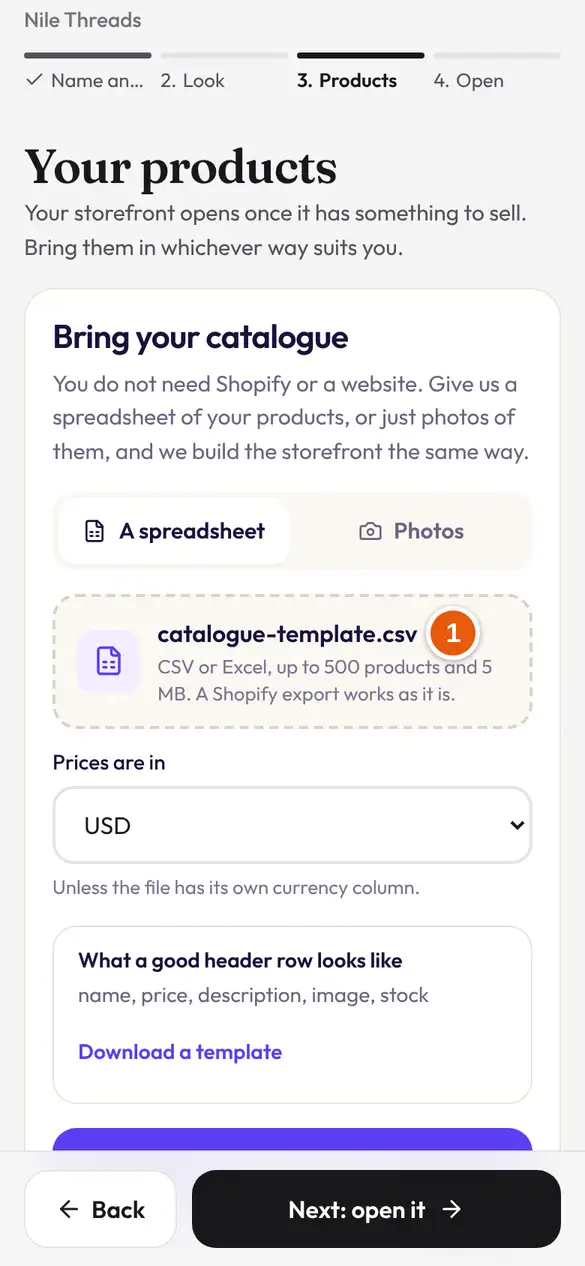
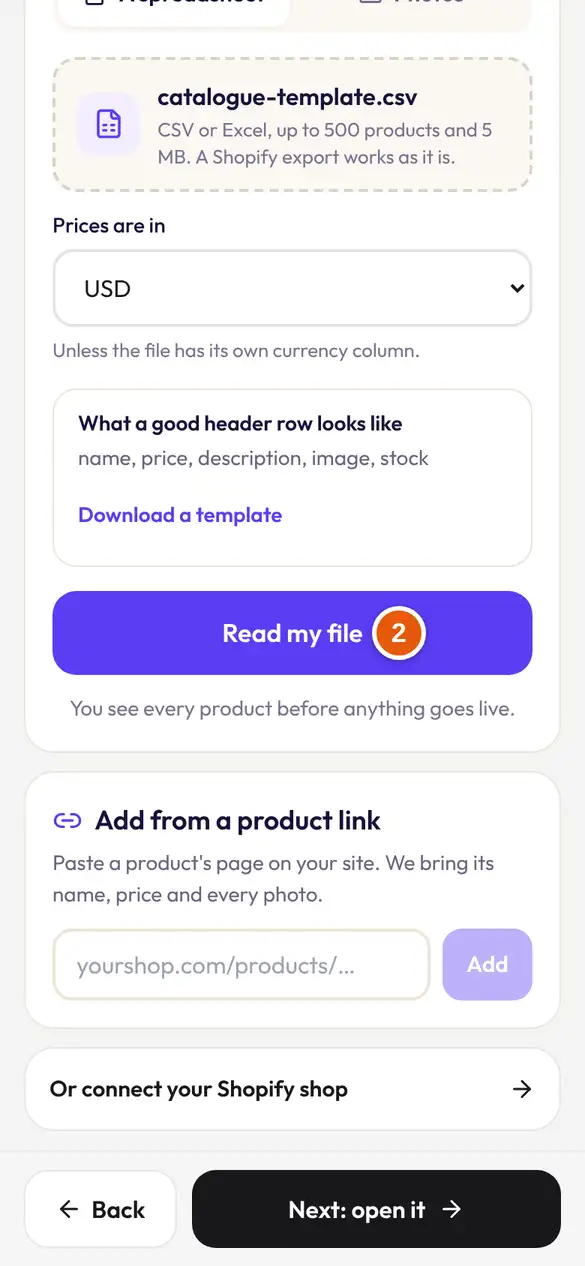
Pick your spreadsheet. Its name shows once it's chosen. Tap Read my file.
Kigezi reads every row. Nothing goes live yet. Have a look at what was found. Tap Fix on anything that needs it, or Skip to leave it out.
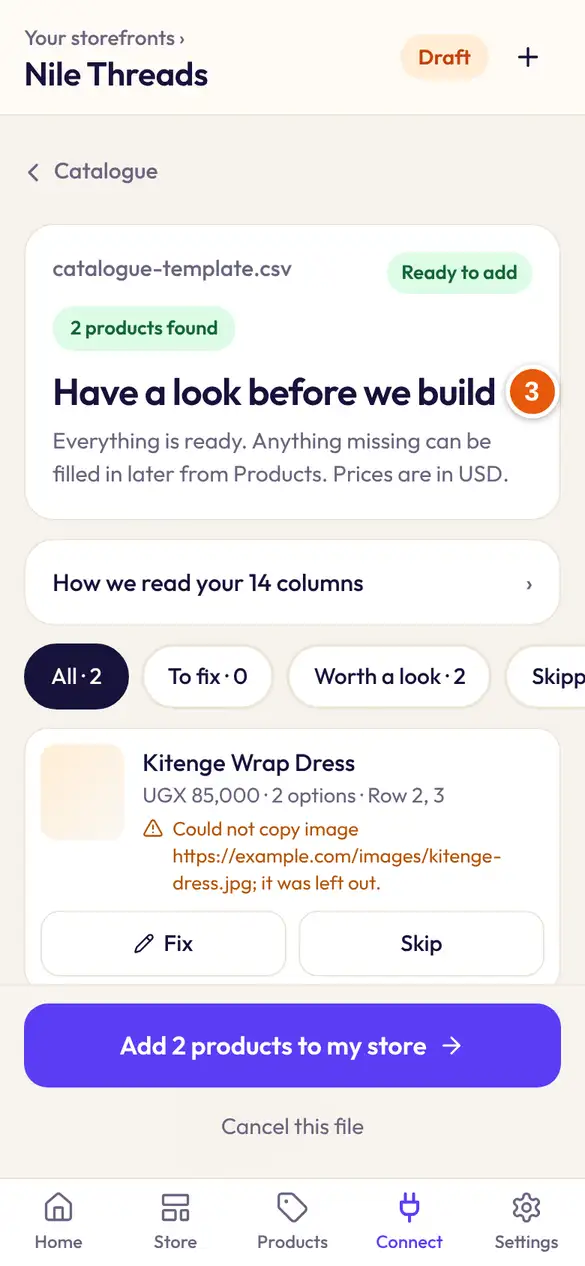
You see every product before anything goes live. Tap the Add products to my store button.
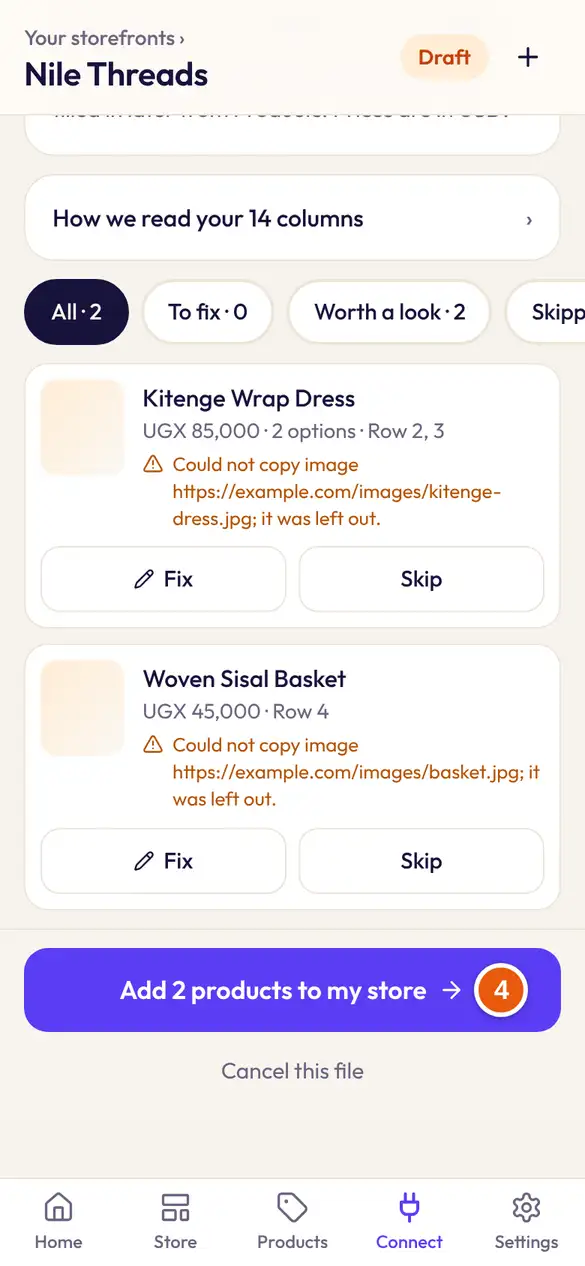
Add the products when they look right. Tap Add them.
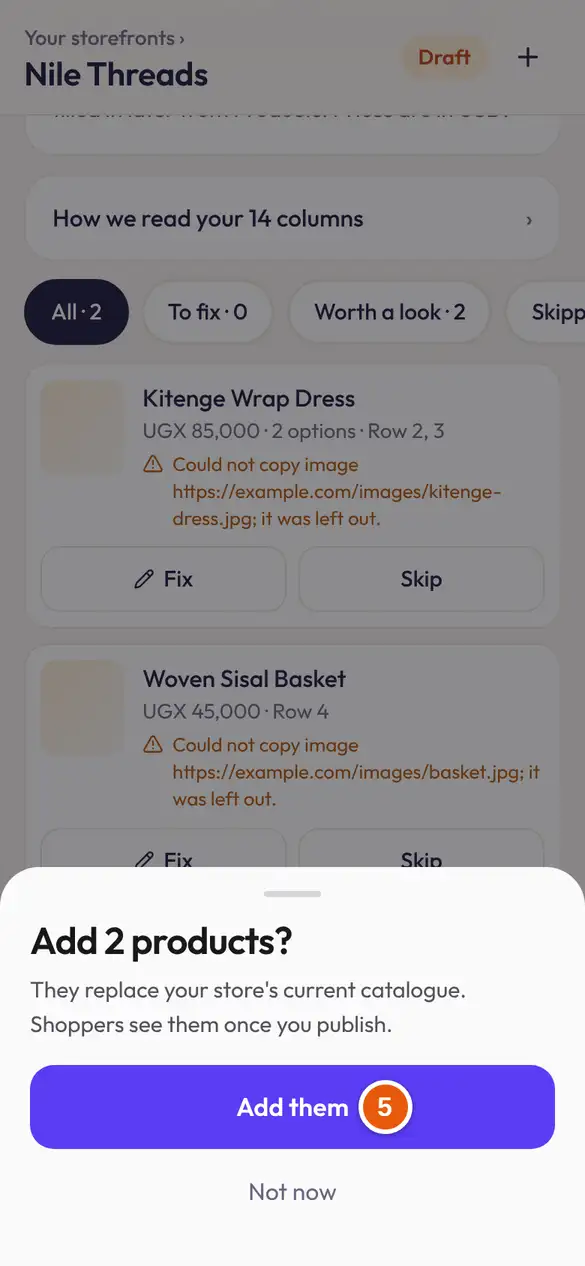
They replace your store's current products. Shoppers see them once you publish.
What happens next
Your products are in your store. Shoppers see them once you publish: tap Publish latest changes, or open your store if it isn't live yet.
If something goes wrong
- It says it could not copy an image.
- The image link didn't work, so the product was added without it. Shoppers don't see a product until it has a photo: add one later from Products.
- A column was read as the wrong thing.
- Open How we read your columns, choose what that column holds, then tap Read the file again with these. Fixes you made are replaced.
- My file is too big.
- Split it into files of up to 500 products and 4 MB, and add them one at a time.