Make it live
Your store open to shoppers at your link.
About 2 minutes. You need: A store with at least one product that has a photo, a contact email and your returns.
Go to Open. It shows the link your store goes live at.
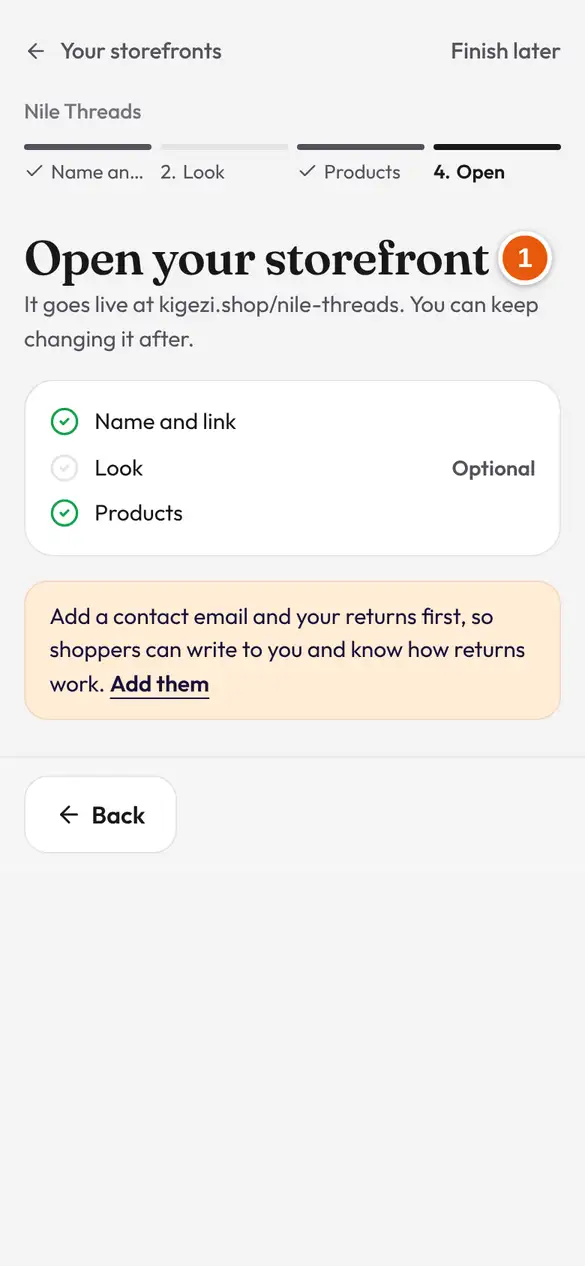
Open your storefront shows your link and what is done. If it asks for a contact email or your returns, tap Add them and fill them in.
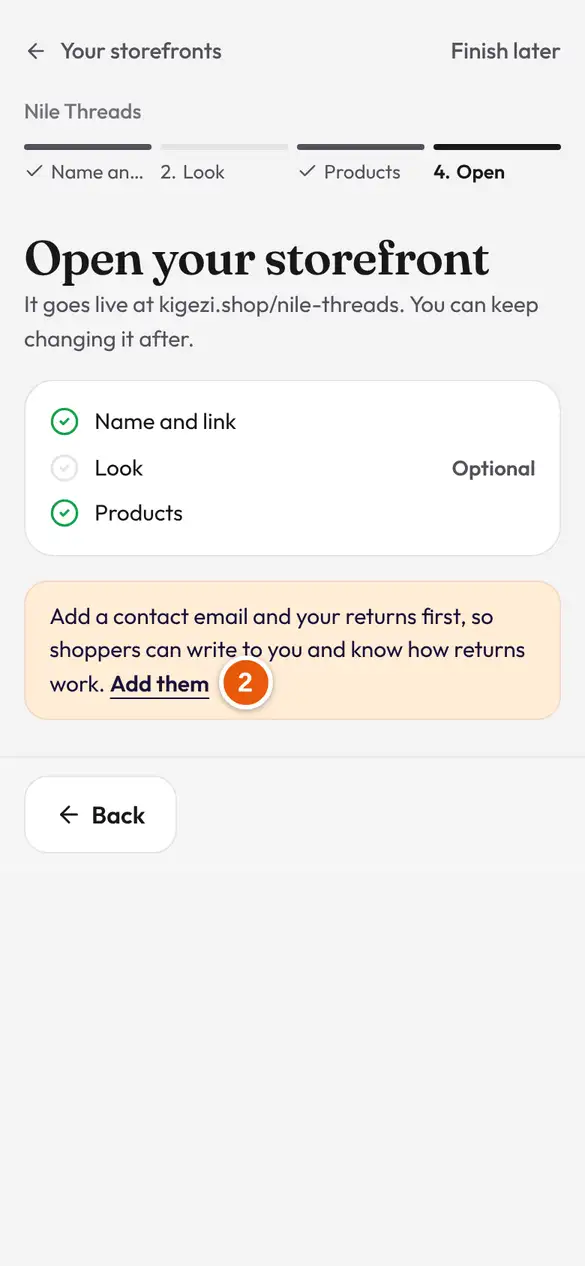
Shoppers need a way to write to you and to know how returns work. Tap Publish my storefront.
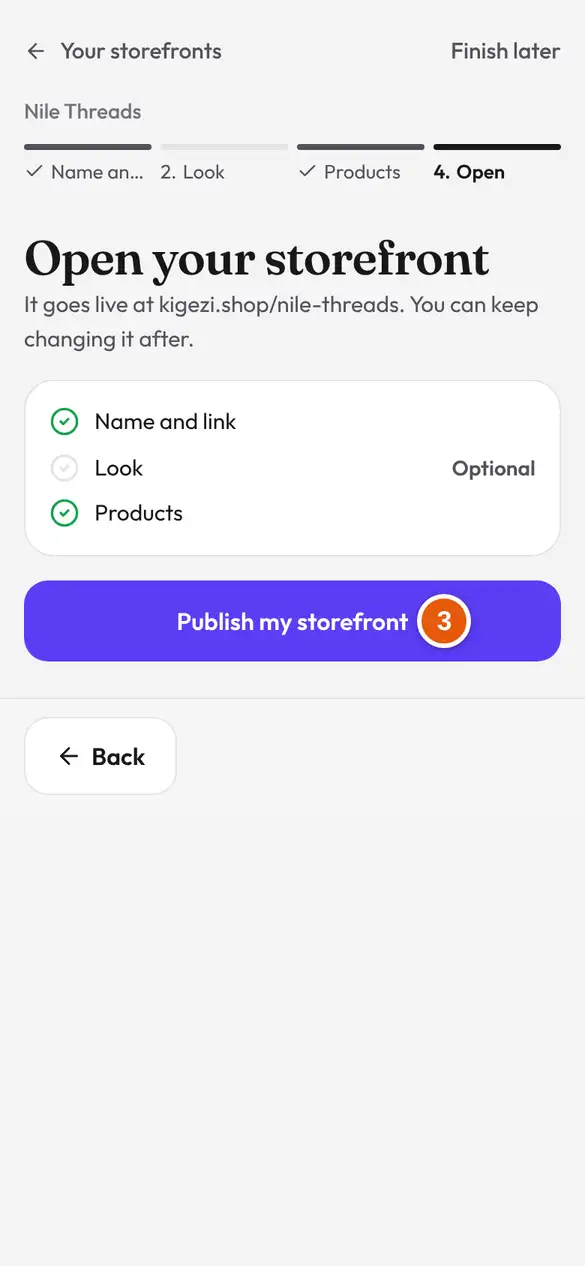
Tap Publish my storefront. Tap Open my storefront to see it as shoppers do.
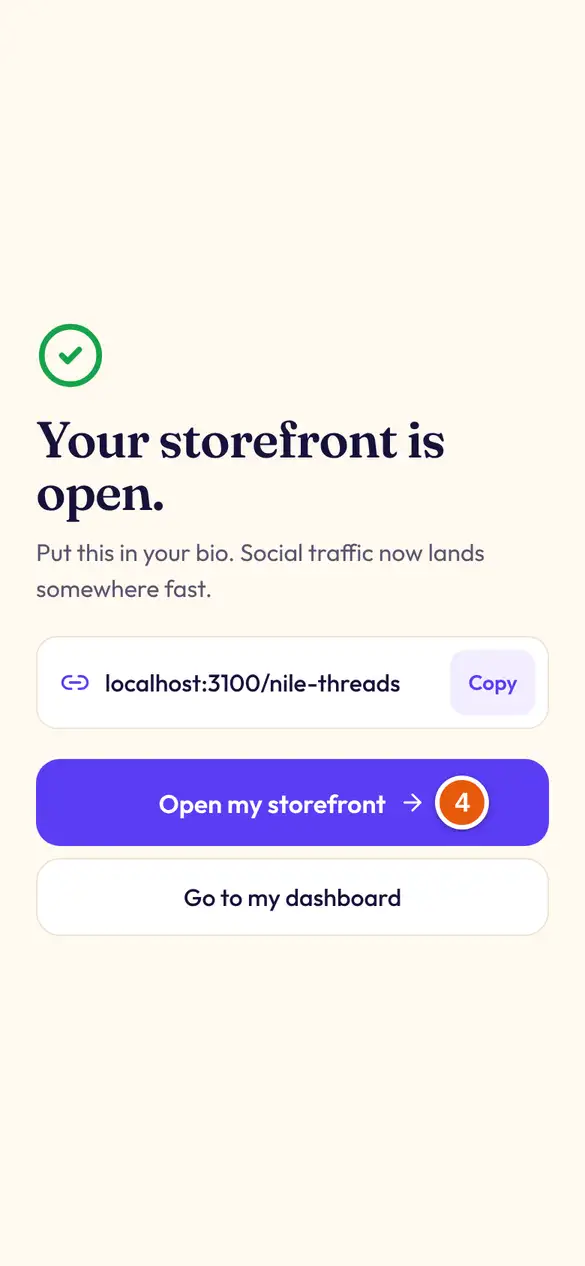
Your storefront is open. Copy your link, or open it to see it as shoppers do.
What happens next
Shoppers can visit your link now. Changes you make later show once you tap Publish latest changes.
If something goes wrong
- It says to add a product with a photo first.
- Add a photo to a product, or add a product that has one, then come back to Open. Products without a photo aren't shown to shoppers.
- A product doesn't show on my store.
- Check it has a photo and isn't hidden. Products without a photo aren't shown to shoppers. Add one and it appears.
- My changes don't show on my store.
- Tap Publish latest changes. Shoppers see the last published version until you do.